External drives for CDJs
Proper writes your playlists to an external drive that a Pioneer CDJ plays directly, with the audio, beat grids, cues, waveforms, keys and covers. Rekordbox does not need to be installed.
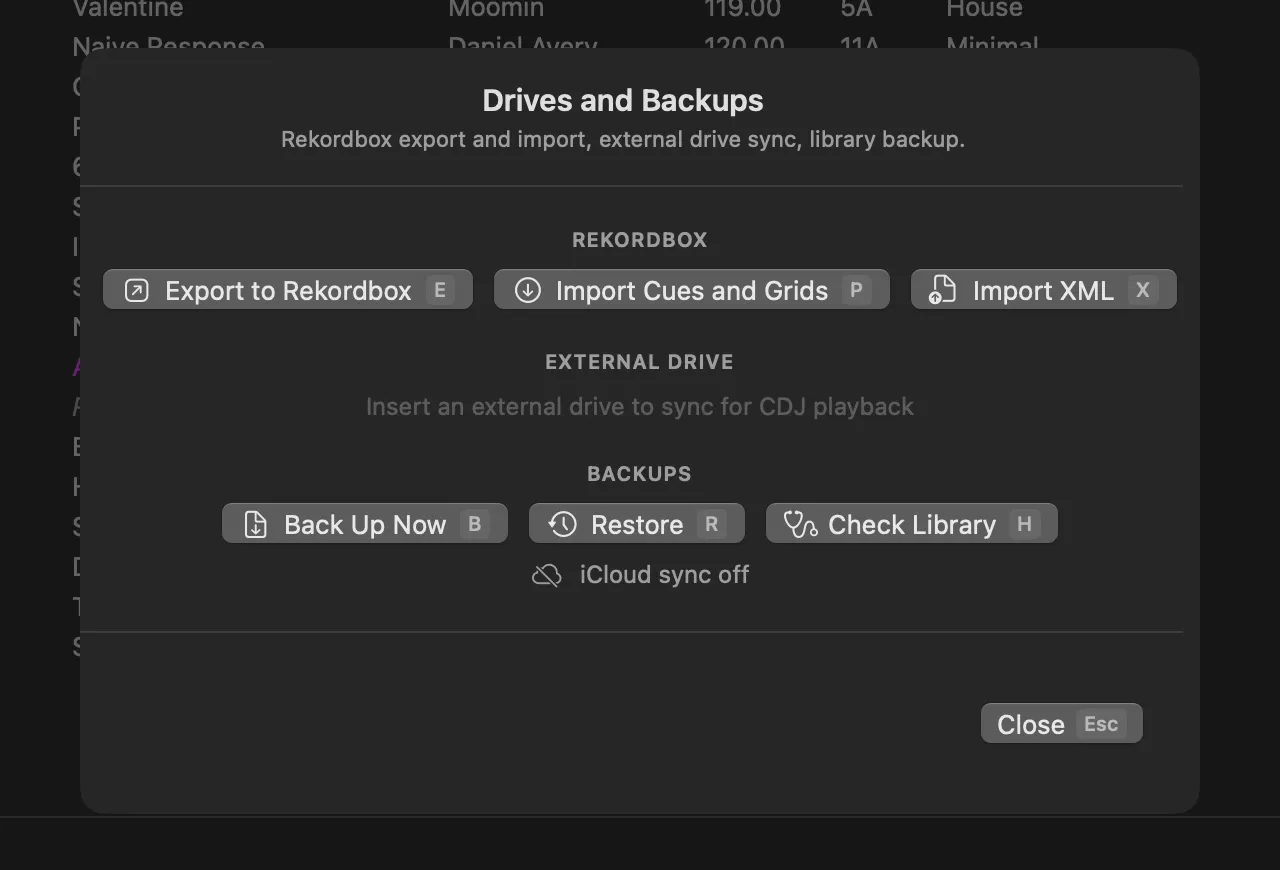
Get a drive ready
Section titled “Get a drive ready”Format the drive as MS-DOS (FAT) or ExFAT in Disk Utility. Proper does not format drives, and it refuses a drive a CDJ cannot read before anything is read or written.
| Format | Result |
|---|---|
| MS-DOS (FAT), including FAT32 | Written. The safest choice, since every Pioneer player reads it. No file over 4 GB fits. |
| ExFAT | Written |
| Mac OS Extended | Written |
| APFS, NTFS | Refused, with how to erase the drive in Disk Utility on the Mac or in Files on the iPhone |
From the iPhone, FAT32 writes faster than ExFAT. An Import is not checked for format, since it writes nothing to the drive.
If you are coming from Rekordbox, bring your Rekordbox library in before your first export, so the drive carries the grids and cues you already set there.
Export your playlists
Section titled “Export your playlists”- Plug in the drive and press Ctrl+B to open Drives and Backups.
- Press u, or click Sync to followed by the drive’s name.
- When the sync is done, press o to eject the drive. Shift+U syncs and ejects in one step.
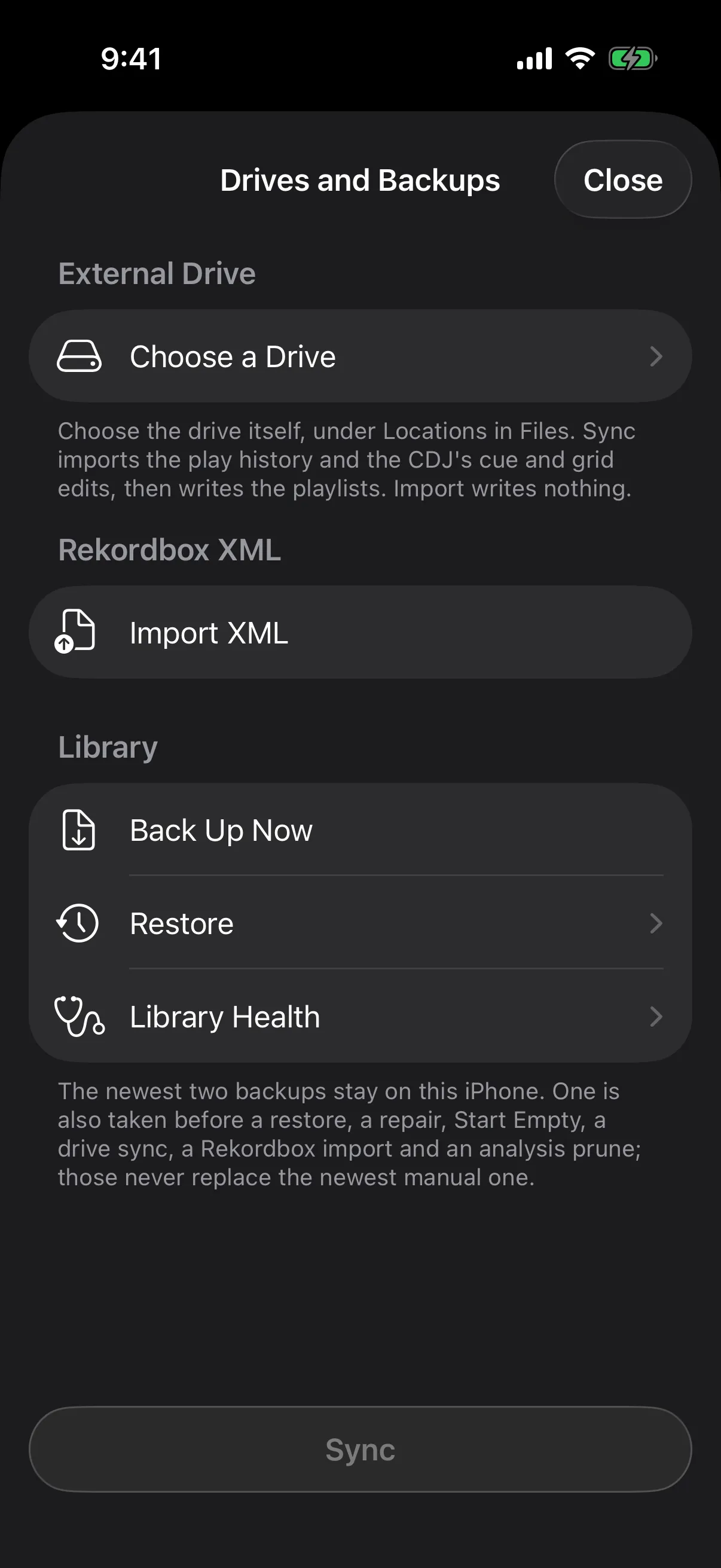
- Plug the drive in by USB-C or through a card reader.
- Open the sidebar drawer and tap Drives and Backups, the drive icon.
- Tap Choose a Drive, then choose the drive itself under Locations in Files.
- Tap Sync to followed by the drive’s name, at the foot of the screen.
- Wait for Safe to unplug before you pull the drive out. The iPhone has no Eject.
Keep Proper open while it writes. A sync keeps going when the phone is locked, but about four times slower.
The first sync of a large library takes a while, because unanalyzed tracks are analyzed on the way. The result line counts any track left off the drive and says why (What is left off a drive).
Keep the play history after a gig
Section titled “Keep the play history after a gig”A CDJ records each set on the drive as a play history. The next sync rebuilds the drive’s databases, so before it writes anything it lists every session it found, each one unchecked.
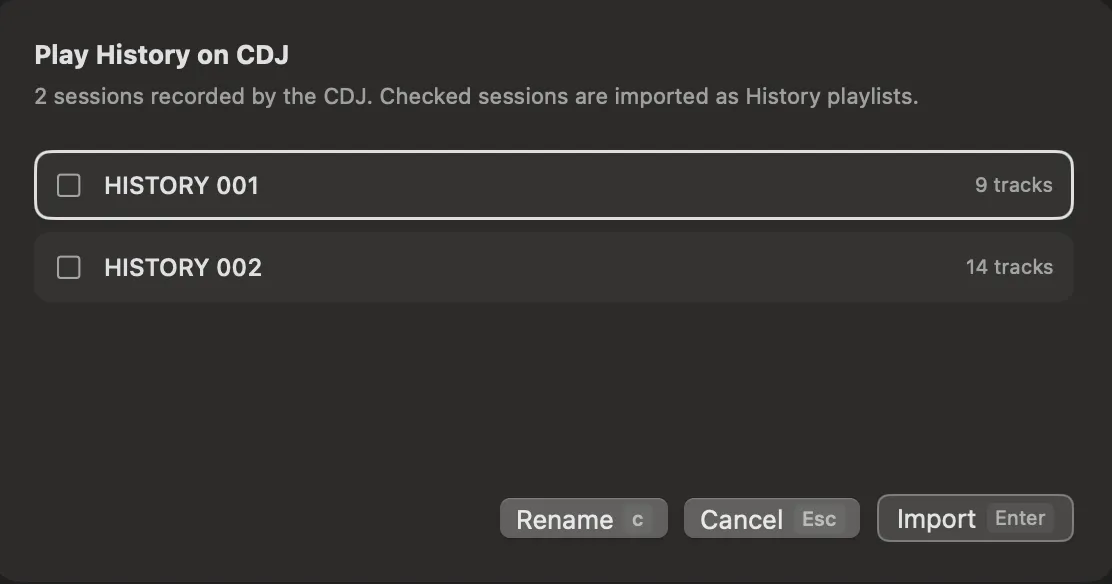
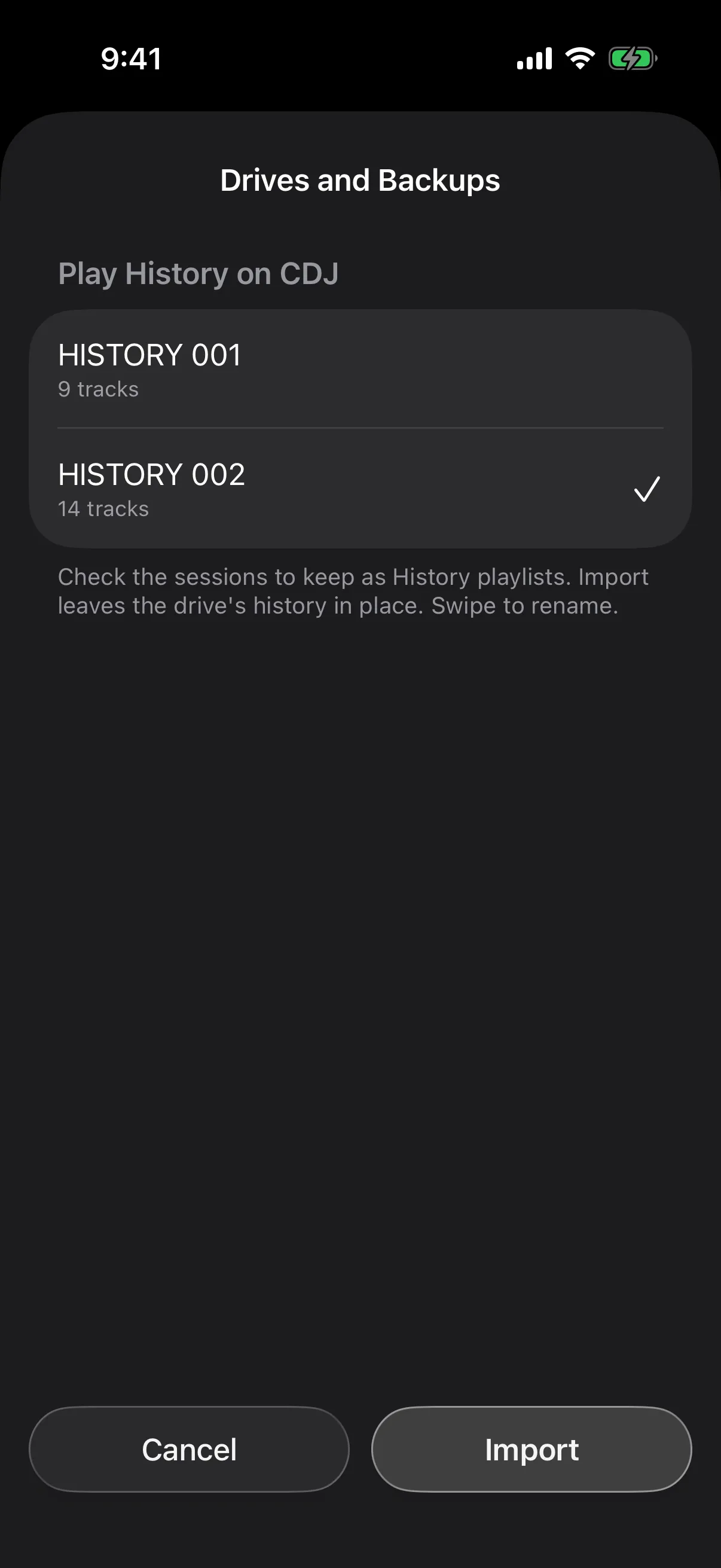
- Check each session you want to keep: tap it, or move to it and press Space.
- Press Enter, or tap Continue Sync.
| Key | What it does |
|---|---|
| j / k, Down / Up, Ctrl+N / Ctrl+P | Move between sessions |
| c | Rename the session, which also checks it |
| Escape | Cancel the sync |
Each checked session becomes a history playlist, named as on the drive unless you renamed it (Playlists describes them). Tracks of a session that are not in the library on this device are skipped and counted.
Bring back cue changes made on the CDJ
Section titled “Bring back cue changes made on the CDJ”A CDJ-3000 saves the cues you set and the grid nudges you make on the drive. Every sync and import reads them into the library before anything is written. To bring them in without writing the drive, press i on the Mac or tap Import on the iPhone.
A cue you delete at the CDJ is deleted from the library too, and the next drive you export carries every edit. A variable-tempo grid is flattened to one tempo.
If a track’s cues or grid changed both at the CDJ and in Proper since the last sync, the sync stops and lists each such track, starting on Proper’s version. On the iPhone, tap the version to keep, or Keep the Same for All.
| Key | What it does |
|---|---|
| j / k, Down / Up, Ctrl+N / Ctrl+P | Move between tracks |
| a | Keep Proper’s version |
| c | Keep the drive’s version |
| Shift+A / Shift+C | Keep that side for every track |
| Enter | Continue with these answers |
| Escape | Cancel the sync |
Update the drive after changes
Section titled “Update the drive after changes”Sync the same drive again whenever your playlists change. The drive’s databases are rebuilt on every sync, which is what erases the play history. Only the audio of tracks new to the drive is copied, and tracks no longer in any exported playlist are removed. A track whose audio changed gets the new file, unless its grid is locked or was kept as the CDJ set it; then it keeps the old audio and the result line counts it. Files of your own elsewhere on the drive are never touched. A sync that stops partway can be run again and picks up where it left off.
What a sync does
Section titled “What a sync does”A sync runs these steps in order.
- It checks the drive’s format and refuses a drive a CDJ cannot read.
- It reads the play histories on the drive and asks which to keep.
- It fetches the latest changes from iCloud, so edits made on your other device are included. If the fetch fails, the result line says that edits from your other device may be missing. Sync again once iCloud catches up.
- It reads the cues and grids changed at the CDJ and asks about any changed in two places.
- It backs up the library, in a backup listed as Before a drive sync. If there is not enough space for the backup, it asks whether to go on. Sync Without Backup writes the drive with no backup, and Cancel stops with nothing written. Any other backup failure stops the sync before anything is written.
- It writes the drive.
Cancel or Escape at any question stops the sync and leaves the drive untouched. An Import runs steps 2 to 4 and writes the CDJ’s edits into the library instead of writing the drive. The history sessions you pick land as soon as you answer, even if you cancel a later question.
A drive sync or import keeps running when you close the dialog. If it reaches a question meanwhile, Drives and Backups opens again on the question. When another screen is up, the status pill says the sync is waiting, and the question comes up as soon as that screen closes. Every other action in the dialog, such as a backup or a restore, keeps the dialog open until it finishes.
Before a gig
Section titled “Before a gig”- Keep the folders you play from downloaded on the device you sync from. The export downloads a track still in iCloud, which slows the sync down, and a track that cannot be fetched is left off.
- Lock the grids you have fixed, so a re-analysis never replaces them.
- Sync the drive and read the result line for tracks left off.
- On the Mac, eject the drive before you unplug it. On the iPhone, wait for Safe to unplug.
The drive keys
Section titled “The drive keys”Ctrl+B opens Drives and Backups on the Mac. The iPhone has the same steps on its own screen, opened from the sidebar drawer, and a hardware keyboard uses the same keys there.
| Key | What it does |
|---|---|
| u | Sync the first drive: bring in its CDJ edits and history, then write it |
| Shift+U | Sync the first drive, then eject it (Mac only) |
| i | Import from the first drive without writing it |
| o | Eject the first drive (Mac only) |
| Escape | Close |
On the Mac, a second drive takes j, k and l for sync, import and eject, and a third takes n, m and ,. Shift with a sync key syncs and ejects. A drive keeps its keys for as long as it stays plugged in, even when another drive comes or goes. Import is offered only for a drive that already holds an export. The dialog’s other keys are on Backups, Library health and Rekordbox.
A drive written by something else
Section titled “A drive written by something else”A drive another Proper library wrote is refused, and so is one whose Proper data is damaged. To use it, clear its PIONEER and Contents folders, or format it. A drive Rekordbox wrote, or one no library has written, is taken over by the first export, which replaces its databases with this library’s.
Do not export from Rekordbox onto a drive Proper wrote. Rekordbox rebuilds the drive’s databases from its own library and can delete files it did not write, so the playlists and audio Proper put there are lost. Give Rekordbox a drive of its own.
What is left off a drive
Section titled “What is left off a drive”Archived playlists and history playlists are never exported. On a drive the iPhone syncs, new tracks from folders that are only on the Mac, such as ~/Downloads, are left off too.
These are left off and counted in the result line, each with its reason:
- no analysis on this device yet, or the track could not be analyzed,
- in a folder with Analyze tracks switched off,
- a format a CDJ cannot play (Supported formats has the list),
- not downloaded from iCloud, when the download does not arrive; after one stalled download the rest are not asked for,
- file missing or unreadable,
- over 4 GB on a FAT32 drive.
The library’s name on the player, the browse layout, the order of each playlist and the player settings come from CDJ settings.