The iPhone app
The iPhone app works on the same library as the Mac. This page covers what differs on the phone, where touch takes the place of the keyboard and the mouse. Everything else works as The Mac window and the feature pages describe. The pictures show a small demo library.
What only the Mac does
Section titled “What only the Mac does”- Show every field of a track at once in full-field view.
- Eject a drive. On the phone, wait for Safe to unplug.
- Analyze a track too long for the phone’s memory.
- Use folders that are only on the Mac, such as
~/Downloads. The phone hides them from its drawer, and new tracks from them are left off a drive the phone syncs. See iCloud sync. - Choose where backups are saved, and move a backup file on or off the device.
- Choose which column the mark, playlist and genre lists open under, and whether the playback bar shows its grid and cue buttons. See Configuration.
- Fill a Bandcamp cart and download purchases.
- Export to Rekordbox, and import from its library directly. The import from a Rekordbox XML file works on both.
The track list
Section titled “The track list”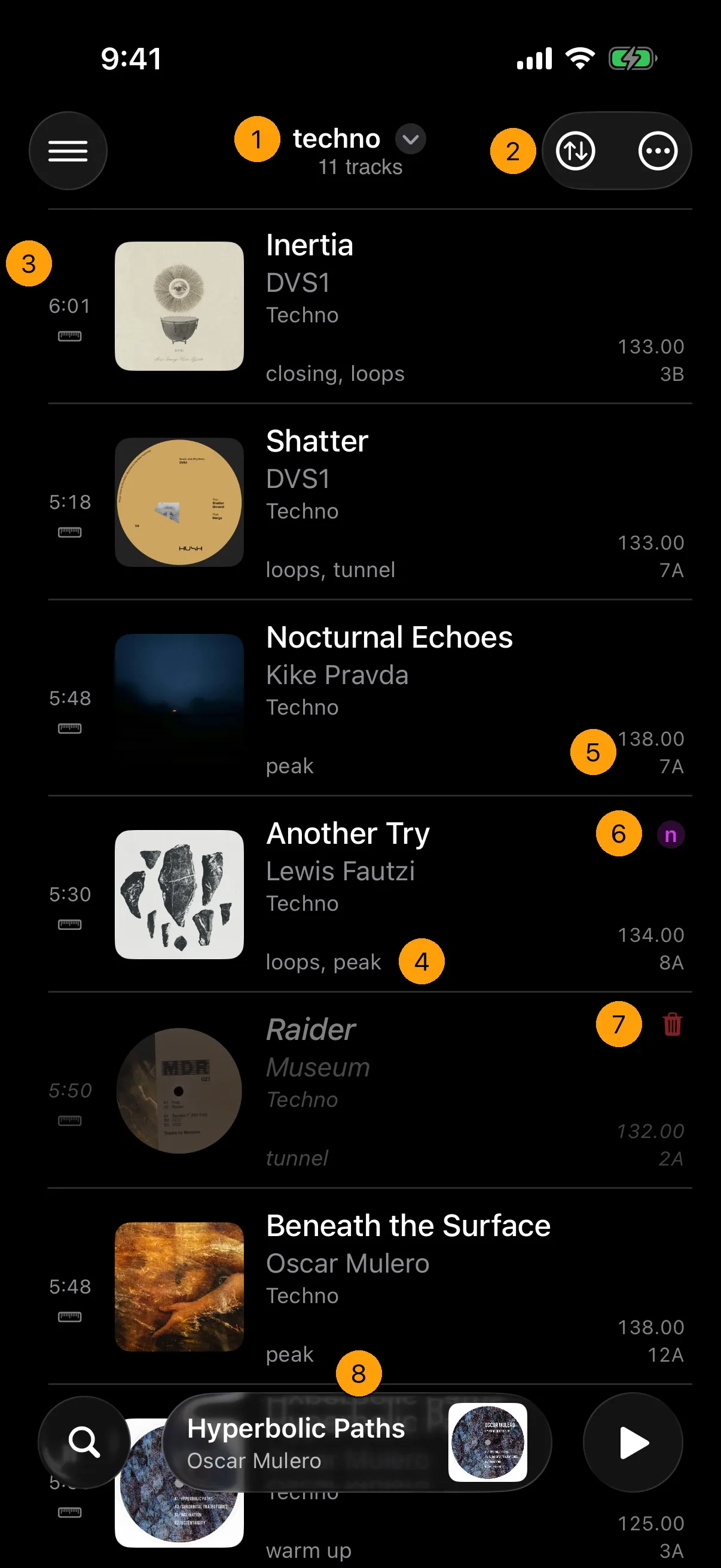
The track list is the main screen, and every other screen opens from it.
- The name of the place and its track count.
- The sort button and the … button, which holds the actions for the whole list.
- The track’s length, with a ruler under it when the track has a beat grid, or a padlock when the grid is locked.
- The playlists the track is in.
- The tempo and the key, once the track has been analyzed.
- A mark for the folder with that letter.
- A track staged for deletion, gray and italic with a trash icon.
- The now-playing pill.
The bar at the bottom holds the magnifier, the now-playing pill and the Play button. The magnifier searches the list, or filters the drawer while it is open. Messages from the app appear in a pill just above the bar.
A cloud on a row means the file is in iCloud and not yet on the phone. Tapping the row downloads it and plays it.
Touch the list
Section titled “Touch the list”| Gesture | What it does |
|---|---|
| Tap a row | Play the track |
| Swipe a row right | Add it to the play queue |
| Swipe a row left | Stage it for deletion in a folder, for removal in a playlist or on the wishlist, or stage its release as listened, or as unlistened, in the Bandcamp feed. Swipe again to take it back |
| Long-press a row | Open the row menu |
| Long-press and drag a row | Move it to a new place in a playlist |
| Pull down on the list | Fetch the latest changes from iCloud and reload the list |
| Tap the title at the top | List the places beside this one, such as the other playlists in the same folder |
A playlist folder has no left swipe, because there a staging would name neither a removal nor a deletion.
The row menu
Section titled “The row menu”The row menu is the Mac’s right-click menu for touch, with Show in Files in place of Show in Finder. It adds Select, which opens selection mode with that row ticked, and Edit Tags…, which opens a card to edit the track’s tags and BPM. On every menu, Edit Tags…, Rename File… and Show in Files come in that order.
The sort control
Section titled “The sort control”The sort button opens a panel of the sort fields, and its icon fills in while a sort is in effect. The panel lists twelve fields in two columns: Title, Artist, Album, Genre, BPM, Playlists, Comment, Type, Bitrate, Sample Rate, Date and Marks. The Bandcamp lists add Label after Album. Marks sorts the list by decision, in the order Review your decisions describes.
Tap a field to sort by it, and tap it again to reverse the order. Ascending and Descending set the direction of the sort in effect, and the direction carries over to the next field you pick. Clear Sort puts the list back in the order it loaded in and closes the panel. Otherwise the panel stays open while you tap, and closes when you tap outside it.
The list’s … menu
Section titled “The list’s … menu”The … button at the top of the track list holds the actions the Mac does with keys. An entry appears only when it has something to act on.
| Group | Entries |
|---|---|
| Playback | Shuffle, Go to Playing Track, Clear Queue (N) |
| Marks | Clear Marks and Staging, then Commit N Moves and Commit N Deletions, or Commit N Removals in a playlist or on the wishlist |
| The list | Analyze N Tracks, Clean Tags |
| This view | Select or End Selection, Select All, Reselect, Save Search |
| Overview | Playlist Visualizer |
| History | Undo and Redo, each naming the step it would take back or replay |
In the Bandcamp feed the menu also holds Show Listened or Hide Listened. Analyze N Tracks and Clean Tags act on every track the list shows, whatever is ticked. Reselect appears only while the list still shows a track of the last selection.
Selection mode
Section titled “Selection mode”Selection mode is the touch version of the Mac’s selection. Select in the … menu or in the row menu opens it, and a tap then ticks a row in or out instead of playing it. Select All ticks every row the list shows, and Reselect brings back the last selection.
A bar above the player acts on the ticked rows, with Mark, Playlists, Stage or Unstage, Queue, and More for the rest of the row menu. Stage reads Unstage when every ticked row is staged. Show in Files is not offered over a selection. An action ends selection mode, unless Keep selection after action is on in Device Settings. Done ends it too.
The drawer
Section titled “The drawer”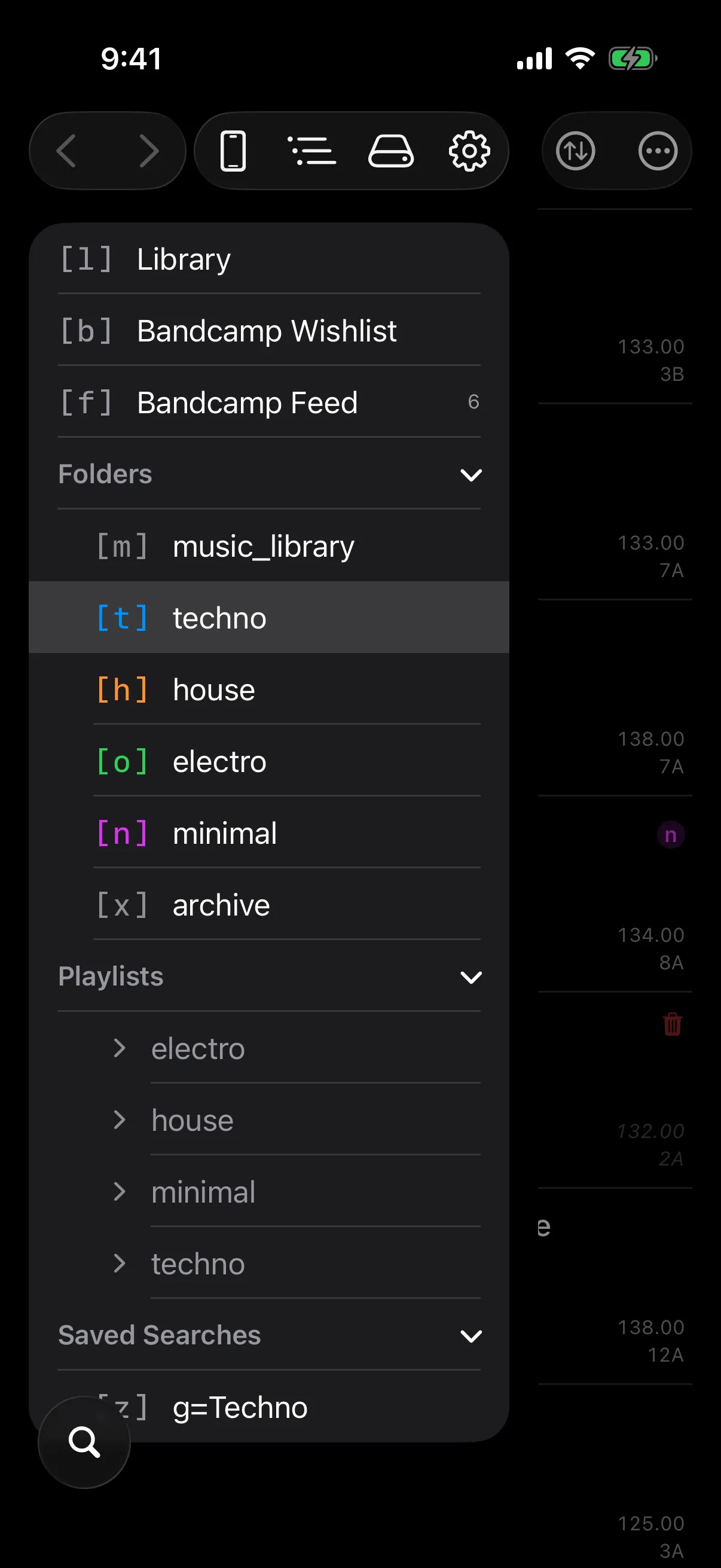
The drawer is the phone’s sidebar. The menu button at the top left of the track list opens it, and so does a swipe in from the left edge. Tap the dimmed area beside the drawer to close it.
It lists the Library, the Bandcamp Wishlist and Bandcamp Feed while you are signed in to Bandcamp, your folders and your playlists. Tap a place to open it. The letter in brackets beside a place is its mark, in the folder’s color. The number beside a place is how many tracks opening it lists, and a folder leaves out a track whose file is gone from this iPhone. Tap a playlist folder’s name to open it, or the chevron beside it to fold and unfold it.
The two arrows at the top left go back and forward through the places you have visited. The four buttons at the top right open the phone’s other screens, from left to right.
| Button | Opens |
|---|---|
| Phone | Device Settings |
| List | The Playlist Manager, described in Playlists |
| Drive | Drives and Backups |
| Gear | Settings |
The player
Section titled “The player”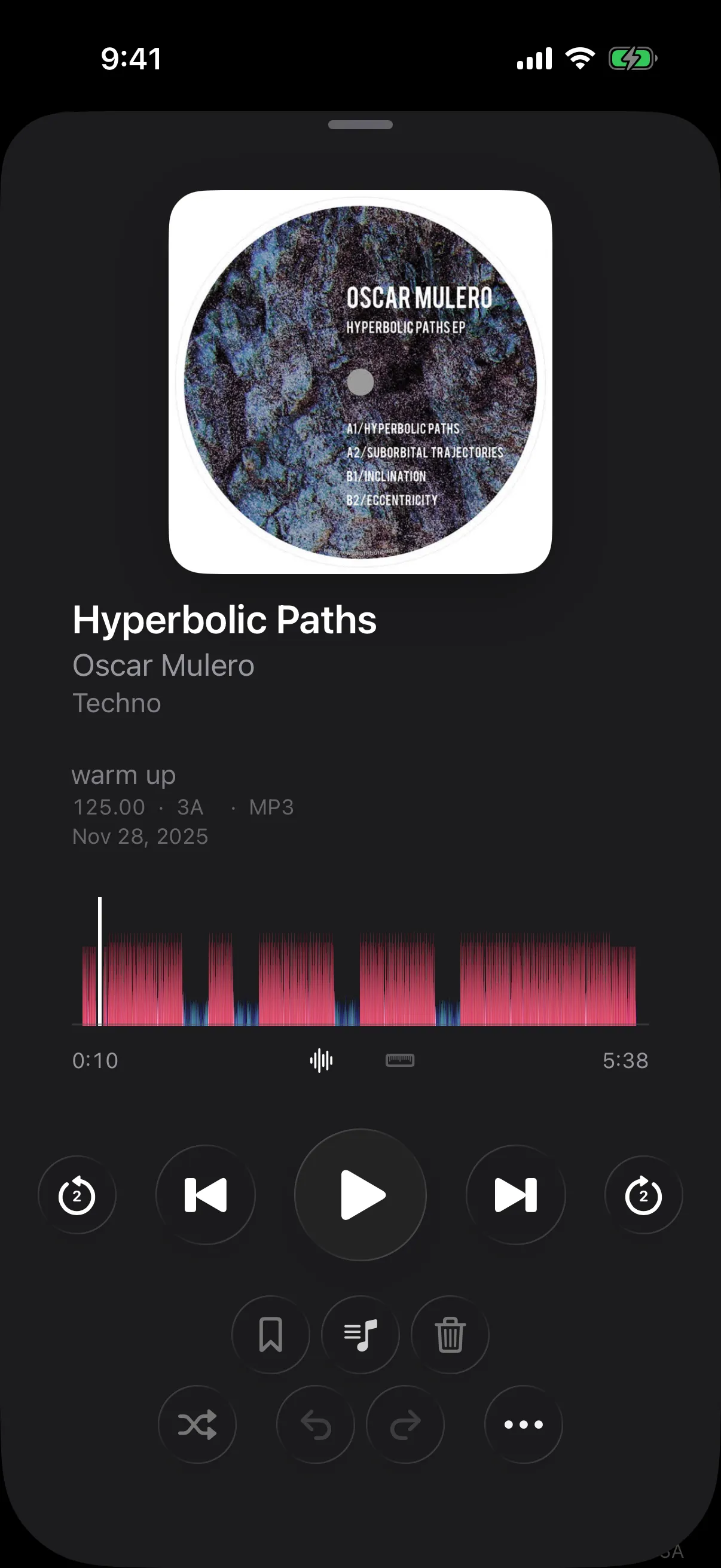
Tap the now-playing pill to open the player, and drag the player down to close it. Swipe it sideways for the next or previous track. The player shows the cover, the track’s tags, and a line with its tempo, key and file type.
The waveform is the seek bar. Drag on it to seek, and slide your finger upward while dragging to slow the scrub to 1/2, 1/4 and 1/10 speed. The two small icons under it switch between the waveform and the beat grid.
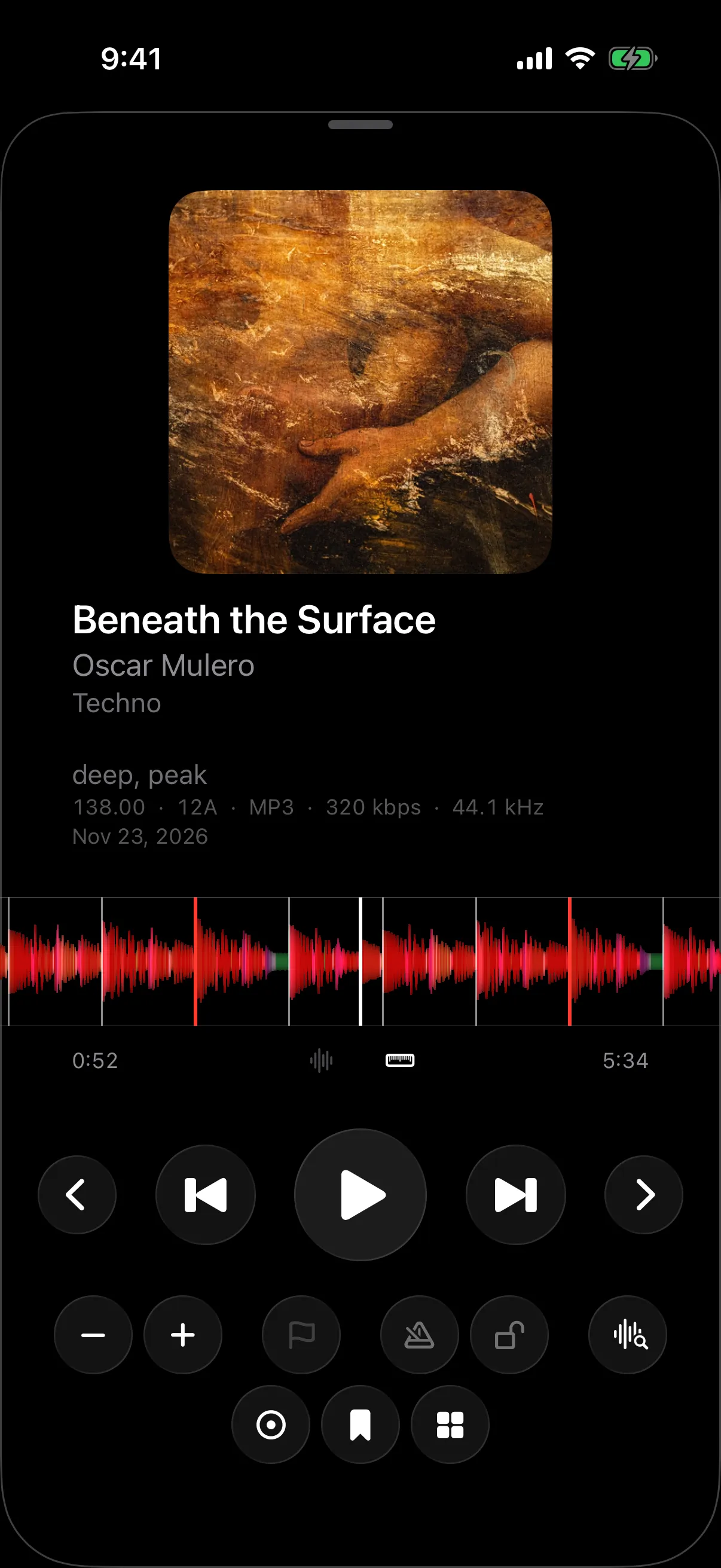
The large buttons are previous, play or pause, and next, with a seek button at each end. Hold a seek button to repeat its jump, and hold previous or next to scrub through the track.
Under the transport, in the waveform view, the first row has Mark, Add to Playlist and Stage for Deletion, which act on the playing track. Stage for Deletion stages the track for removal when you are in a playlist. A marked track’s bookmark wears its folder’s color, and a staged track’s trash turns red.
Mark and Stage for Deletion dim when the playing track is not in the list on screen. Staging dims in a playlist folder too. Add to Playlist works from anywhere. On a track from the Bandcamp feed the row is one button, Stage as Listened, or Stage as Unlistened on a release you have listened to.
The second row has shuffle, Undo, Redo, and a … menu. Its first entries, Edit Tags…, Rename File… and Show in Files, act on the playing track, and the actions of the list’s … menu follow them.
When you switch to the beat grid, the two rows change to the grid and cue buttons, with the nudges, the flag that sets beat 1, the metronome, the lock, Analyze, CUE, the memory cues and the eight hot cues. Each does what its key does on the Mac, and Beat grids and cues explains them.
| Button | What it does |
|---|---|
| - / + | Nudge the grid 5 ms earlier or later |
| Set Bar Start, the flag | Make the CUE point beat 1 of the bar |
| Metronome | Click on every beat, to check the grid by ear |
| Lock Grid | Lock the grid, or unlock it |
| Analyze | Analyze the playing track, or analyze it again when it reads Re-analyze |
| CUE | Tap to set the CUE point, and long-press to go back to it and pause |
| Memory cues | Save a memory cue at the CUE point, jump to one, and long-press one to edit its loop or delete it |
| Hot cues | Tap an empty pad to set it and a set one to jump to it, and hold one to change its color and loop |
Every grid button dims while the playing track has no beat grid, except Analyze, and the metronome while it is on, so you can turn it off. The nudges also dim while the grid is locked, and Set Bar Start dims when a tap would change nothing.
Drives and Backups
Section titled “Drives and Backups”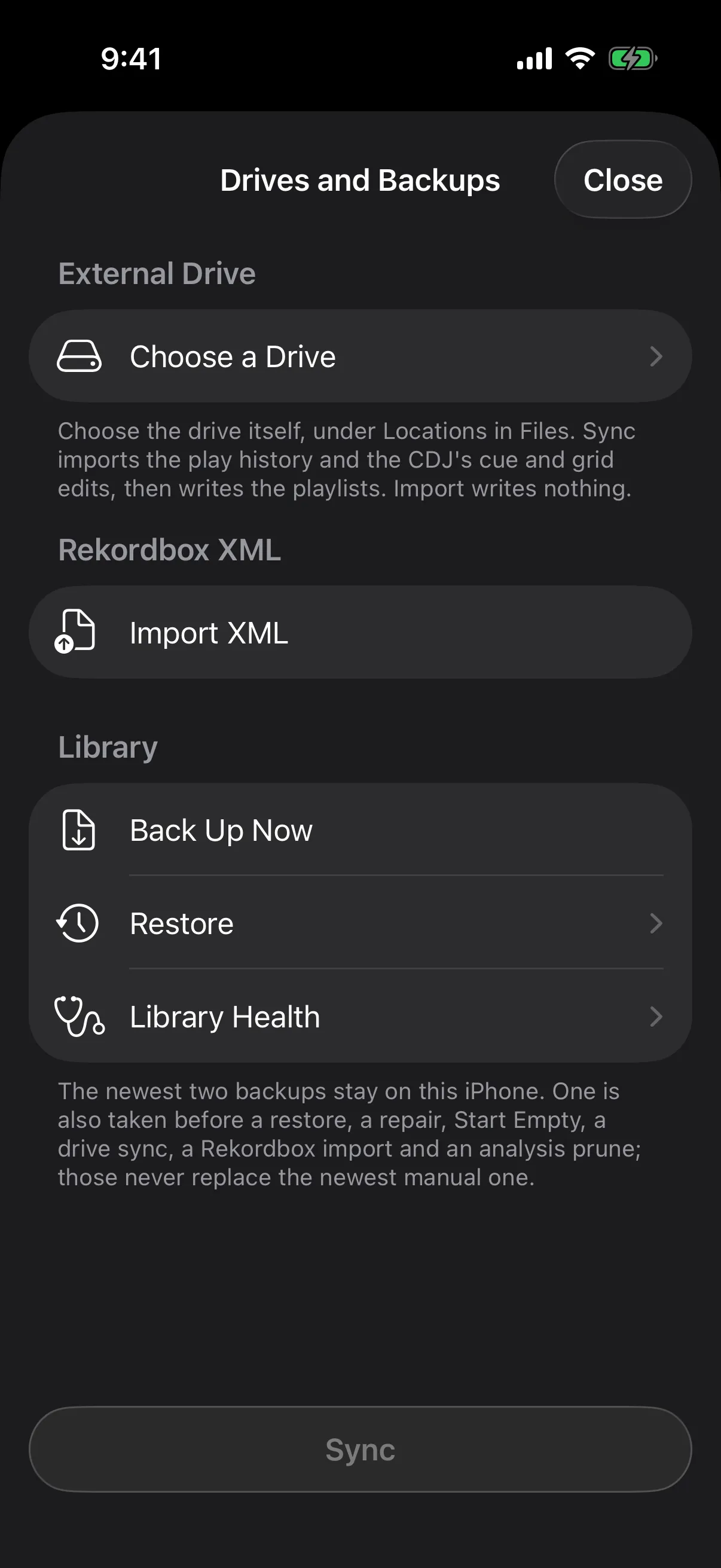
Choose a Drive picks an external drive to sync for a CDJ, and the Sync button at the foot of the screen starts it. Import XML brings in a Rekordbox library. Under Library, Back Up Now, Restore and Library Health back the library up, restore a backup and check it. See External drives for CDJs, Backups and restore and Library Health.
Device Settings
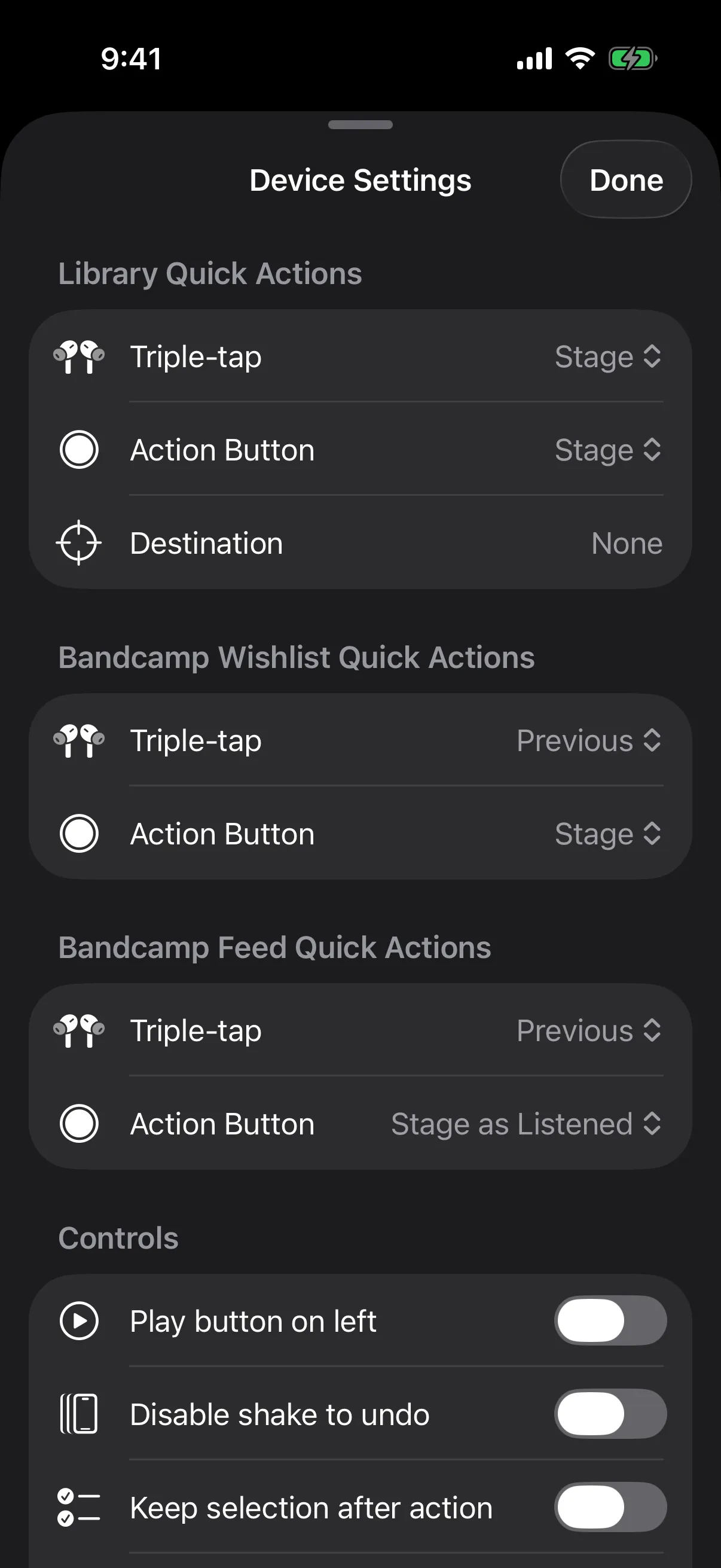
Section titled “Device Settings”Device Settings holds the settings that belong to this phone alone. They are not in the config file and do not sync.
Quick Actions
Section titled “Quick Actions”The three Quick Actions groups set what an AirPods triple-tap and the Action Button do with the playing track, for the Library and, while you are signed in, for the Bandcamp wishlist and feed. See Quick Actions on the iPhone.
Controls
Section titled “Controls”| Switch | Default | What it does |
|---|---|---|
| Play button on left | Off | Puts Play at the bottom left and the magnifier at the right. The search field’s cancel button moves with the magnifier |
| Disable shake to undo | Off | Turns off shaking the phone to undo. Undo in the menus still works |
| Keep selection after action | Off | Keeps the ticked rows ticked after an action |
| Lock screen card | On | Shows the Quick Actions card on the lock screen while a track plays |
Shaking the phone to undo asks first, over whatever screen is up, and the confirmation’s Undo button takes the step back. When no step applies to the list on screen, a shake does nothing. Change your mind covers undo.
Analysis
Section titled “Analysis”This group shows how many tracks’ analysis the phone holds, and why the download is paused when it is. It is shown when the phone has an iCloud account. See Analysis on the phone.
Folder Access
Section titled “Folder Access”Folder Access lists the folders the app may read and write. The app reads and writes only inside them, and every folder in your settings must sit inside one of them. Add Folder opens the Files picker, and a swipe left removes a folder.
Adding a folder that a folder already on the list covers changes nothing. Adding a folder that holds folders already on the list replaces them with it.
Settings
Section titled “Settings”Settings is the same form as the Mac’s, saved into the same config, with the two CDJ groups on a page of their own. At its foot, Sync Now does what pulling down on the list does, Edit Config shows the config file’s text, and Help opens this site.
A hardware keyboard
Section titled “A hardware keyboard”A paired keyboard uses the Mac’s keys, with a cursor in the track list, the drawer in place of the sidebar and Files in place of Finder. j and k move the cursor. ? opens the keyboard legend, whose Help button opens this site, and Ctrl+H opens this site too.
While the player is open, a and b show the waveform or the beat grid. The keys that edit tags, mark, add to a playlist, stage, remove from a playlist, rename the file, show it in Files, lock the grid and analyze then act on the playing track, as the player’s buttons do. Every other key acts on the cursor.