Editing tags and file names
This page shows how to fix a track’s tags and its file name. Each change is written into the file’s own tags, so other apps see it, and into your library, which syncs it to your other device.
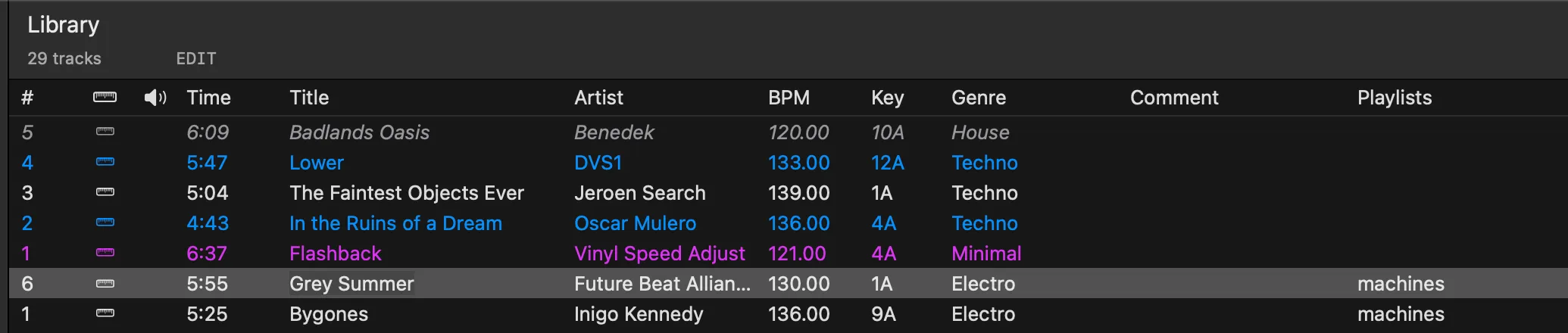
Change a title, artist or comment
Section titled “Change a title, artist or comment”Press the key for the field, type, and press Enter.
| Key | Field |
|---|---|
| ct | Title |
| ca | Artist |
| cm | Album |
| cc | Comment |
| cn | Genre, as free text |
| x | Clear the comment |
While you type, Tab and Shift+Tab save the field and move to the next or previous one, and Escape cancels and puts the old text back. You can also double-click a cell. The toolbar reads EDIT while a field is open.
You can edit only the fields the list shows. If a column is missing, widen the window or add it under General in Settings. Ctrl+F shows long titles and comments in full, on several lines.
Choose Edit Tags… in a row’s long-press menu, in the player’s … menu or on the selection bar. Change the fields on the card and tap Save. A hardware keyboard takes the Mac’s keys.
Cmd+Z undoes a tag edit, a clean, a find and replace or a rename.
How a tag edit is written
Section titled “How a tag edit is written”An edit, a clean or a find and replace writes only the fields it changes, so cover art and every tag Proper does not show stay as they were, and the track keeps its analysis, beat grid and cues. Each edit is also stored in the library, which carries it to your other device.
The new tags are written into a copy of the file, and the copy then replaces it, so a write is made whole or not at all. A write cut short, for example by a crash, leaves the old file whole. The file keeps its Finder tags, permissions and creation date.
Proper reads each file again just before it writes. If the file’s tags changed after the list loaded, for example in another program, Proper leaves the file alone and reloads the row with the file’s own tags, and you repeat the edit on it.
A file that is in iCloud but not downloaded to this device is skipped. Download it and repeat the edit.
If your other device edited the track and the new file has not reached this device yet, an edit here is refused until it arrives.
Change many tracks at once
Section titled “Change many tracks at once”Every edit works on the current track or on every track in the selection. Select the tracks first, then press the edit key. va selects every track by the current artist, and Moving around has the other ways to select. . repeats your last tag edit on the current track or a new selection.
Set the genre from your list
Section titled “Set the genre from your list”cg opens the genres from your Settings. Type to filter the list, then press Enter or click a genre. Each genre has a hotkey, and typing it puts that genre first, so the hotkey and Enter set it. The same hotkeys select by genre, so vg and then h selects every House track. Edit the list under Genres in Settings.
Rename a file
Section titled “Rename a file”Press cf, or choose Rename File… in the row menu, to rename the current track’s file. On the iPhone, Rename File… is in a row’s long-press menu and the player’s … menu. The dialog shows the name without its extension, which stays as it is. Type the new name and press Enter. Escape or Ctrl+C cancels the dialog.
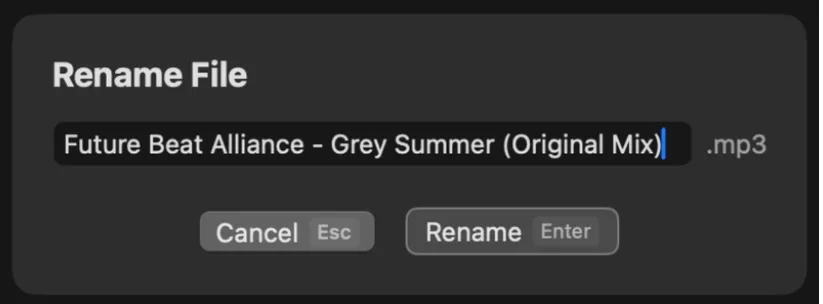
You rename one file at a time. A new name is refused when it is empty, contains / or :, starts with a dot, or is already used by another file in the folder in any mix of capitals. A change in capitals alone, such as “intro” to “Intro”, is allowed. Typing the same name again does nothing.
The track stays the same track. Its playlists, cues, beat grid, analysis and any mark or staging stay with it, and it keeps playing if it was playing. Cmd+Z renames it back.
Clean up messy tags
Section titled “Clean up messy tags”Ctrl+T shows what a clean would change on the current track or the selection, with removed text struck through in red and added text in green. Nothing is written yet. Press Ctrl+T again, Enter or Apply to write it, or Escape or Cancel to drop it.
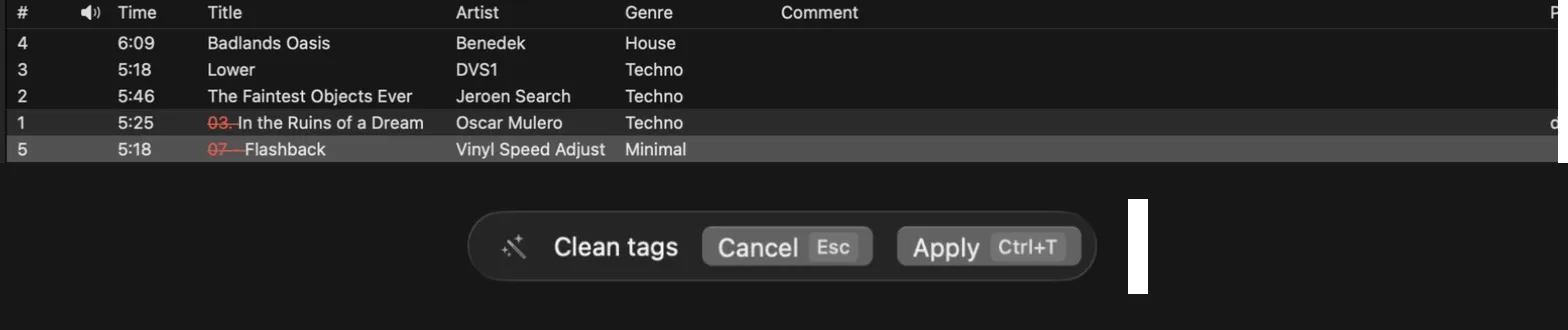
To find every track that needs it, select the whole list with vt and press Ctrl+T. On the iPhone, Clean Tags is in the list’s … menu, a row’s long-press menu and the selection bar.
A clean touches only the title, artist and comment, in this order:
- Each field is trimmed of spaces at both ends.
- Your cleaning rules run in the order they are listed, each on its own field. A rule replaces what its pattern matches, or empties the whole field when it is set to clear the field. If replacements would leave a field empty, the field is left as it was.
- If the artist is empty and the title has the form “Title - Artist”, with one “ - “ in it, the title is split into the two.
- An old playlist list at the end of the comment is dropped, as the end of What Proper writes into your files describes.
The rules you start with remove a track number at the start of a title, such as “01. “ or “1 - “, and clear a comment that holds a web address or words such as “download”, “free music” or “torrent”. Edit the rules under Cleaning Rules in Settings. Their format is in Configuration.
Find and replace
Section titled “Find and replace”Find and replace is on the Mac only. : opens the command line, which finds and replaces text in the comments of the current track or the selection, or of the matching rows when a search is up. Type a replacement in this form:
:s/pattern/replacement/flagsThe list shows each comment before and after while you type. Enter writes the change, and Escape cancels it.
The pattern is a regular expression. In the replacement, $1 and $2 put back what the first and second groups matched. To match a /, write \/.
| Flag | Effect |
|---|---|
g |
Replace every match. Without it, only the first match is replaced |
i |
Ignore case |
| Command | What it does |
|---|---|
:s/remix//gi |
Removes every “remix”, whatever its case |
:s/\s+/ /g |
Turns runs of spaces into one space |
:s/(\w+) (\w+)/$2 $1/ |
Swaps the first two words |
What Proper writes into your files
Section titled “What Proper writes into your files”Proper writes five tags into a file: title, artist, album, genre and comment. It also renames, moves and deletes files when you ask it to, and saves the files you download from Bandcamp. It never changes the audio.
Everything else lives in the library, a database on each of your devices that iCloud keeps in step:
- playlists, playlist folders and play histories
- marks and stagings that are waiting for a commit
- beat grids, BPM, keys, waveforms and other analysis
- memory cues, hot cues and loops
Playlists, cues, beat grids, analysis, marks and stagings are never written into your files, so adding a track to a playlist, setting a cue or analyzing a track never changes its file. Playlists, cues and analysis reach other apps only through an export to an external drive or to Rekordbox.
Proper moves and deletes files when you commit the tracks you marked or staged, as Sorting files describes. A move puts each file into its folder under the same name, and the track keeps its playlists, cues, grid and analysis. A file you delete on one device goes to the Trash on your other device too.
Older versions of Proper wrote a track’s playlists at the end of its comment, after |, as in great intro | warm up, peak. Proper no longer writes this. When it shows a comment, it hides everything from the first |, or the whole comment when it starts with | . The next time it writes that comment, through an edit, a clean or a find and replace, the hidden part is dropped from the file.
Your playlists are not read from these lists. They live in the library.